License Activation NEW
3D Manga Studios works once you activate it with a license key. Until then, its Sidebar panels and menus don't appear. Getting from request to activation takes four steps.
Subject: [3D Manga Studios] License request received
Subject: [3D Manga Studios] Your license key has been issued
How It Works
Flow
In the Add-on Settings
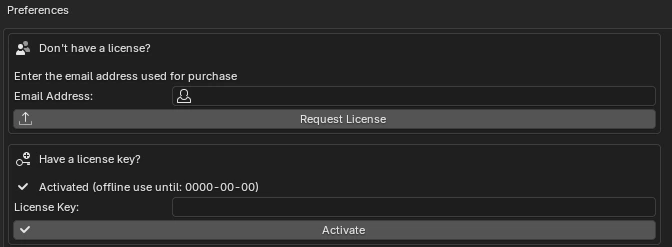
- Open the settings — In Edit › Preferences › Add-ons, expand "3D Manga Studios".
- Send a request — Under "Don't have a license?", enter your email address and click "Request License". Check the address in the confirmation dialog and click OK.
- Activate — Paste the key you received (16 characters,
XXXX-XXXX-XXXX-XXXX) into "License Key" and click "Activate". When it shows "Activated (offline use until: YYYY-MM-DD)", you're done.
- If a request from the same email address is already waiting for approval, no new request is made; it is treated as "Already received".
- If a valid license has already been issued to that address, you can't request another. Use the key in the email you already have.
- If your request isn't approved, we'll tell you why in an email with the subject "[3D Manga Studios] About your license request".
After Activation
Your activation is saved on your PC and turns on automatically at startup from then on. You don't need an internet connection every time.
After a set time since the last check (30 days by default), the add-on re-checks in the background without interrupting your work.
Even if you are offline at the re-check, you can keep using it until the "offline use until" date shown. After that date, activate again while online.
By default, one key can activate 2 PCs. Re-activating on the same PC doesn't count. The same key keeps working after you update the add-on.
Error Messages and Fixes
| Message | Cause | Fix |
|---|---|---|
| The license key is invalid. | Typo in the key, or the key doesn't exist | Copy the key from the email again. Also check for extra spaces before or after it. |
| This license key is for a different add-on. | You entered a key for another add-on | Enter your key for 3D Manga Studios. |
| The activation limit has been reached. | You've activated the maximum number of PCs | Contact the administrator and ask them to free up or add an activation. |
| The license has expired. | A time-limited license has expired | Contact the administrator. |
| The license has been revoked. | The administrator revoked the license | Contact the administrator. |
| This version is no longer supported. Please download the latest version. | Distribution of an old version has ended | Download the latest version and reinstall. |
| Cannot connect to the license server. | No internet connection, server down, or a firewall | Check your internet connection and try again. You can keep using the add-on until the offline use date. |
| The request failed because the add-on's key has been updated… | The key built into the add-on is outdated | Download the latest version and reinstall. |
| This add-on is not accepting license requests right now. | Requests are paused | Contact the administrator. |
Caution
If the license is found to be revoked, expired, for a different add-on, over the PC limit, or for a discontinued version, the activation saved on your PC is deleted and the panels no longer appear.